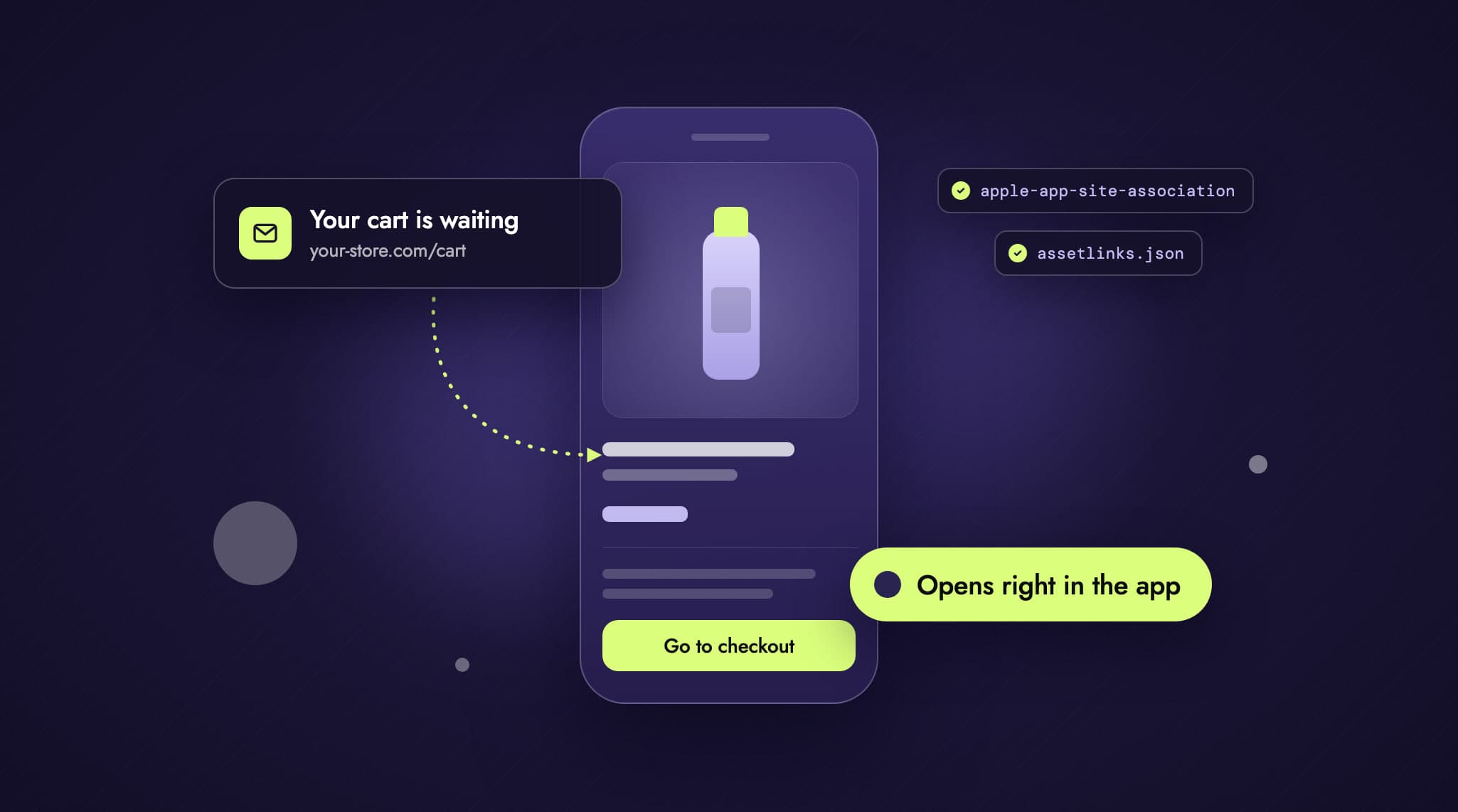
A link in a newsletter, an Instagram story or an abandoned-cart email: anyone who has your app installed should land straight in the app, not in the mobile browser. In the app, customers are logged in, their payment details are saved and checkout is faster. That's what Universal Links (iOS) and App Links (Android) are for.
Technically, all it takes is two small files on your store's domain. On Shopify, the way to set this up has recently changed; today it goes through the Admin API. We set it up for a client's app with two country domains, together with Shopify Plus Support. This guide walks you through it step by step, as of October 2026.
What you need: a dedicated app in the Dev Dashboard, two scopes that Shopify Support enables for it, and one Admin API mutation each for your iOS and Android app. Shopify then generates the files itself, on every connected domain.
What changed at Shopify
iOS and Android only open a link in an app if the domain explicitly allows it. Two files take care of that: /.well-known/apple-app-site-association for iOS and /.well-known/assetlinks.json for Android. On Shopify you don't have to upload them yourself: Shopify generates them automatically, from one record per app, called a MobilePlatformApplication.
You used to create these records in a custom app built directly in the Shopify admin, under "Storefront API integration" in the "iOS Buy SDK" and "Android Buy SDK" sections. Apps like that are now created in the Dev Dashboard, and Shopify moved the Storefront API part to the Headless channel. Since then, the app registration goes through the Admin API. There's no setting for it in the admin or in the Headless channel.
If you're coming from Shopify's guide in the Checkout Kit docs ("Handle offsite payments"), you'll still find the setup via these settings there. The current way through the Admin API is described below.
Theme or headless: who serves the files?
Before you start, answer one question: where does your domain point?
Your domain points to Shopify. That's the case when your web store runs on a Shopify theme. Shopify serves both files, and you need the approach in this article.
Your domain points to your own hosting. That's the case with a headless frontend, for example Next.js on Vercel. Those requests never reach Shopify. You put the two files in place yourself and decide which paths open the app.
Shopify only serves the files while your domain points to Shopify. If you move to a headless frontend later, put the files on the new hosting before you switch DNS. Otherwise links quietly open the browser again instead of the app, without any error message.
Step by step: registering your apps
1. Create a dedicated app in the Dev Dashboard
A small, dedicated app creates the records through the Admin API. It has nothing to do with your storefront, and your Headless channel stays as it is. Create the app in the Dev Dashboard, create a first version and install it on your store, plus your staging store if you have one.
The app belongs in the merchant's organization. If you work on it as an agency, you need the "App developer" role there. The simplest way to get an access token (step 4) only works when the app and the store belong to the same organization.
Don't use a throwaway app. According to Shopify Support, the records are tied to this app's installation. It has to stay installed for good, so note that in your runbook.
2. Request the scopes from Shopify Support
You need the scopes read_mobile_platform_applications and write_mobile_platform_applications. You can't select them yourself, and declaring them in your app configuration isn't enough. Shopify has to enable them for your app. Until then, the API rejects your requests.
Send Support the app's name, its client ID and the stores it's installed on. We went through Shopify Plus Support. They explained the process in detail, and the scopes were enabled two days after their first reply. We don't know whether stores without Plus get them the same way.
3. Release a new version with the scopes
Once they're enabled, you can select both scopes in the Dev Dashboard. Create a new version of the app, add the scopes and release it. New scopes don't apply automatically to stores where the app is already installed, though. You have to approve them again in each store's Shopify admin.
4. Get an access token
Because the app and the store belong to the same organization, the client credentials grant is all you need. You exchange the client ID and client secret from the app settings for a token that's valid for 24 hours. No server or redirect required.
curl -X POST "https://{shop}.myshopify.com/admin/oauth/access_token" \
  -H "Content-Type: application/x-www-form-urlencoded" \
  -d "grant_type=client_credentials" \
  -d "client_id=$SHOPIFY_CLIENT_ID" \
  -d "client_secret=$SHOPIFY_CLIENT_SECRET"
The scope field in the response shows which scopes the app actually has, so you can see right away whether they've been enabled. Keep the secret out of your repository, in an environment variable or a file outside the project.
5. One mutation each for iOS and Android
The input of mobilePlatformApplicationCreate accepts either apple or android, never both. So you call the same mutation twice:
mutation Register($input: MobilePlatformApplicationCreateInput!) {
  mobilePlatformApplicationCreate(input: $input) {
    mobilePlatformApplication {
      ... on AppleApplication { id appId universalLinksEnabled }
      ... on AndroidApplication { id applicationId appLinksEnabled }
    }
    userErrors { field message }
  }
}
For iOS, the appId is your team ID plus the bundle ID:
{
  "input": {
    "apple": {
      "appId": "ABCDE12345.com.example.shop",
      "universalLinksEnabled": true,
      "sharedWebCredentialsEnabled": false
    }
  }
}
For Android, you need the package name and the SHA-256 fingerprint:
{
  "input": {
    "android": {
      "applicationId": "com.example.shop",
      "sha256CertFingerprints": ["AB:CD:EF:…"],
      "appLinksEnabled": true
    }
  }
}
For the fingerprint, use the app signing key from the Play Console (Play App Signing), not your upload key. Otherwise verification fails for every install from the Play Store. Further fingerprints, for test builds for example, are best added to the existing record with mobilePlatformApplicationUpdate rather than a second create.
This query shows whether everything is in place:
{
  mobilePlatformApplications(first: 10) {
    nodes {
      ... on AppleApplication { id appId universalLinksEnabled }
      ... on AndroidApplication { id applicationId sha256CertFingerprints }
    }
  }
}
All requests go to https://{shop}.myshopify.com/admin/api/2026-07/graphql.json, with the token in the X-Shopify-Access-Token header. After that, the app's job is done. It stays installed but doesn't need to do anything else.
6. Check that everything arrives
First, directly on your domain:
curl -s https://www.example.com/.well-known/apple-app-site-association
curl -s https://www.example.com/.well-known/assetlinks.json
iPhones don't fetch the file from your domain directly but through Apple's CDN, which caches it. Here's what Apple is currently serving:
curl -s https://app-site-association.cdn-apple.com/a/v1/www.example.comFor Android, Google offers its own check. The response has to contain "linked": true:
curl -s "https://digitalassetlinks.googleapis.com/v1/assetlinks:check\
?source.web.site=https://www.example.com\
&relation=delegate_permission/common.handle_all_urls\
&target.androidApp.packageName=com.example.shop\
&target.androidApp.certificate.sha256Fingerprint=AB:CD:EF:…"
Don't test on your *.myshopify.com domain. Shopify deliberately doesn't serve the files there and returns a 404. Check each of your own domains instead, with and without www.
What the app needs to handle
In the app, every domain needs its own entry. Apple and Google treat example.com and www.example.com as different hosts. With two country domains, that's already four entries, plus staging.
For iOS, in the app's Associated Domains:
<key>com.apple.developer.associated-domains</key>
<array>
  <string>applinks:example.com</string>
  <string>applinks:www.example.com</string>
</array>
For Android, as an intent filter with autoVerify in AndroidManifest.xml:
<intent-filter android:autoVerify="true">
  <action android:name="android.intent.action.VIEW" />
  <category android:name="android.intent.category.DEFAULT" />
  <category android:name="android.intent.category.BROWSABLE" />
  <data android:scheme="https" android:host="example.com" />
  <data android:scheme="https" android:host="www.example.com" />
</intent-filter>
We tested with TestFlight and the Google Play internal testing track. With debug builds in the simulator, verification didn't work for us.
Which links open the app
Shopify defines in the file which paths end up in the app. You currently can't supply your own list. The file ends with a catch-all for every path (/*). The only exceptions are /admin/*, two return URLs used by payment providers, and the checkout paths. Shopify's docs show three of these exceptions; our client's file now has six. So the list changes, and your app shouldn't rely on any particular shape.
There's a feature request for custom exceptions. In October 2026, Shopify replied there that improvements are "on our radar". There's no date yet.
So any link to your domain can open the app, including blog posts, legal pages and landing pages. The app has to do something sensible with every URL. For our client, a small resolver takes care of that:
Known paths open the matching screen: home, product (including
/collections/…/products/…), collection, search, cart, account and wishlist.Shopify Markets language prefixes such as
/enor/de-atare stripped first.Everything else opens in the app's web view. That way, no link ends on an empty screen.
Old paths from before the move to Shopify are mapped as well, because they still turn up in older newsletters.
Cart links from abandoned-cart emails (/cart/c/…) aren't excluded either. Anyone with the app installed lands in the app with them, so the app needs to handle them.
Common pitfalls
Admin API only: There's no setting for the app registration in the admin, not in the Headless channel either.
Scopes only via Support: Declaring them isn't enough; Shopify has to enable them.
Approve new scopes: in the admin of each store the app is installed on.
Two calls: never
appleandandroidin the same input.The right fingerprint: the app signing key from Play App Signing, not the upload key.
Don't test on myshopify.com: All you get there is a 404.
With and without www: Shopify redirects regular pages to the primary domain, but serves both files directly on every connected domain. If links without www are in circulation, both hosts belong in the app.
All domains, same files: Every domain connected to the store serves identical files. There's no per-domain setting.
Only with DNS at Shopify: If the domain points elsewhere, Shopify no longer serves anything.
Be patient with caching: Apple serves the file through its CDN with a delay, and Android verifies on install and update. After changes, reinstalling the app helps.
Summary
The setup takes a few more steps than it used to. Once it's in place, though, it runs without maintenance: two mutations, and then the configuration app sits idle. Three things belong in your runbook: the app must never be uninstalled, the domains have to point to Shopify, and a new signing key needs a new fingerprint.
Shopify says the topic is on its radar. As soon as anything changes, we'll update this article.
Planning your own shopping app for your Shopify store, or stuck at exactly this point? Get in touch.